
Setup & video guides.
Let’s get you connected.
Choose where you want to see your alerts. Follow the video or the steps below — your scanner is already set up and ready to connect.
Before you startPark up, fit the antenna and use the supplied power lead. Your Android app download and video links are in your order email.
Wireless connection
Live data on your phone · iPhone or Android
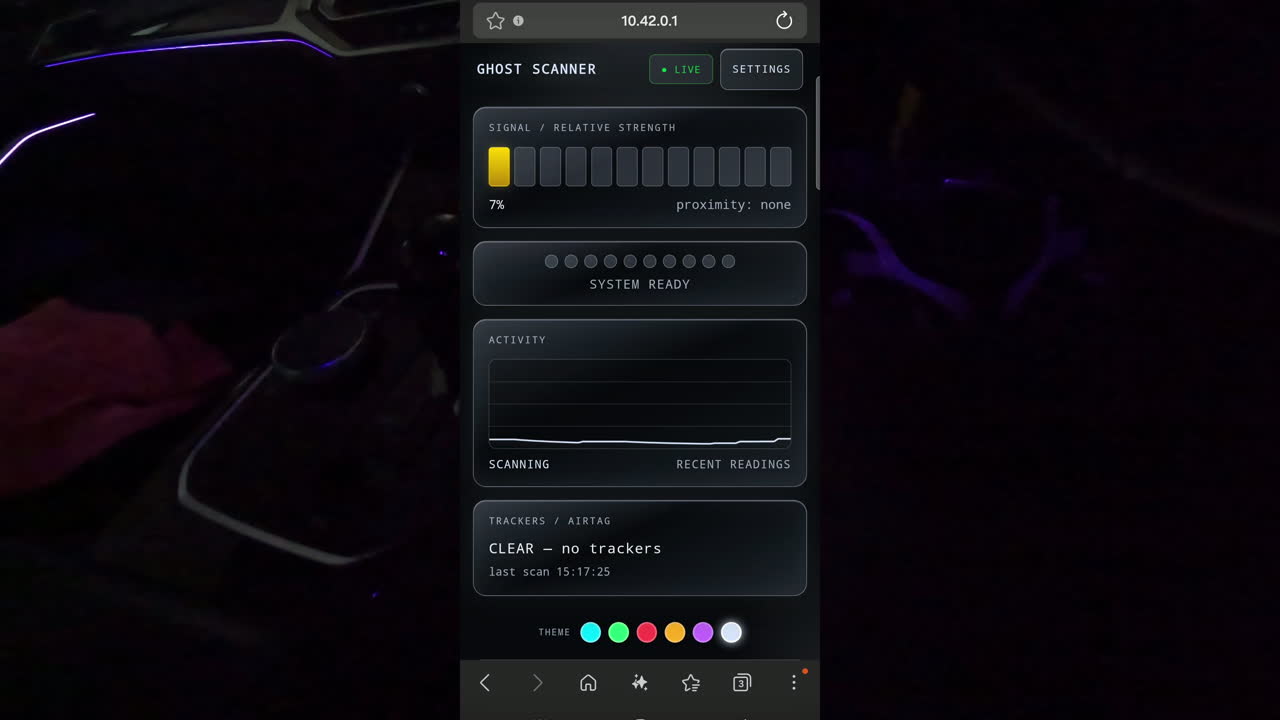
Your wireless connection details
- Wi-Fi network
- GS
- Wi-Fi password
- ghostscanner
- Scanner website · open after joining GS
- http://10.42.0.1:8765/
- Website login password
- ghostscanner
Power on Ghost Scanner
Connect it to your vehicle’s power supply using the supplied lead. It starts automatically. Wait for the GS Wi-Fi network to appear.
Join the GS Wi-Fi network
Open your phone’s Wi-Fi settings, choose GS and enter ghostscanner. If your phone says “No internet”, choose to stay connected.
Open the scanner website
Type http://10.42.0.1:8765/ into your browser’s address bar. If asked to log in, use ghostscanner.
Choose your theme
Wait for live readings, then select the design you like. Keep your phone connected to GS while using this option.
The scanner website works directly over GS Wi-Fi. It does not need an internet connection.
Save an icon on your phone
iPhone / Safari: open the Share menu, choose Add to Home Screen, then Add.
Android / Chrome: open the ⋮ menu and choose Add to Home screen. Depending on your version, this may appear under Install or Create shortcut.
You’re ready when the readings update. Leave the dashboard open to view live data. Next time, join GS and open your saved icon.
Android Auto connection
Live data on your car screen · Android phone + wireless Android Auto
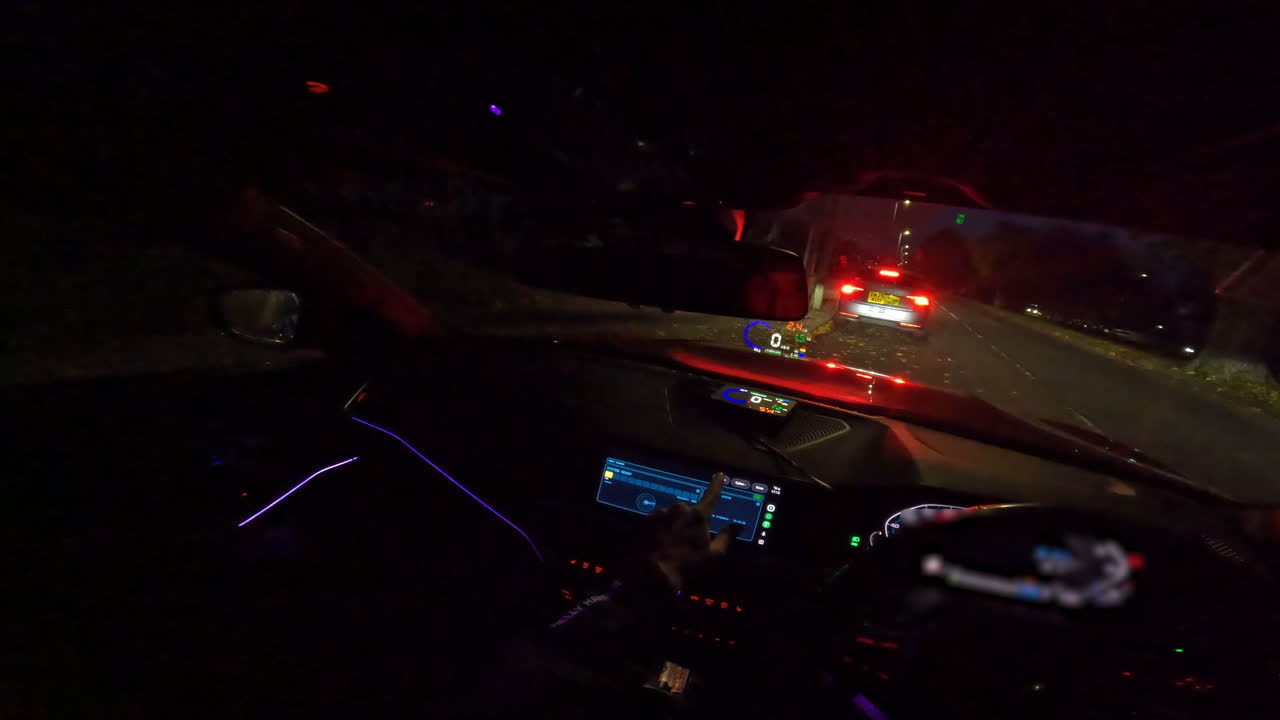
How this connection works
USB cable: Ghost Scanner → your phone
Wireless Android Auto: your phone → your car screen
Keep your phone’s Wi-Fi connected to the car. Do not join the GS hotspot on that same phone for this option.
Install the Android app
Use the download link emailed with your order. Do this while your phone has internet access. You only need to install it once.
Power on and connect the USB cable
Power Ghost Scanner separately, then connect the supplied USB tether cable between the scanner and your phone.
Turn on USB tethering
Open your phone’s USB options and select USB tethering. Charging only or File transfer will not connect the scanner app.
Open Ghost Scanner on your phone
The app connects automatically. Once “Waiting for link” clears and readings are live, tap a theme.
Open it through Android Auto
Connect to your car’s wireless Android Auto as usual, then open Ghost Scanner from the car’s app list. Keep the USB cable connected and tethering switched on.
Make it yours
Your theme. Your settings.
Choose Cyber, Smart, Racer, Hacker or Pro. Open Settings on the website or Android app to adjust sensitivity, alert hold time and sound.
Start with Normal. Your scanner keeps checking for signals while an alert stays on screen, and new activity extends the alert.
- Fewer alerts
- Requires a stronger signal before alerting. Useful if you want fewer alerts in busy areas.
- Normal · default
- The balanced setting your scanner is supplied with. Start here.
- More sensitive
- Picks up weaker signals more readily. Expect more alerts.
A little help, if you need it
Connection questions
My phone says the GS Wi-Fi has no internet.
That is expected. GS connects your phone directly to Ghost Scanner. Choose to stay connected, then enter http://10.42.0.1:8765/ in the browser’s address bar.
The scanner website will not open.
Check that your phone is connected to GS and type the full address, including http:// and :8765. This address only works while connected to your scanner. If the network has not appeared yet, check the scanner’s power and allow it to finish starting.
The Android app still says “Waiting for link”.
Check the USB cable supports data and USB tethering is switched on. Reconnect the cable, enable tethering again, then reopen the app. Use the latest app from your order email. If needed, check Connection settings: the scanner’s Android USB address is 10.225.109.50, port 8765.
Can I use a car that only has wired Android Auto?
The setup shown here uses wireless Android Auto, because your phone’s USB port connects to Ghost Scanner. If your car only supports wired Android Auto, use the phone’s wireless browser option or contact us about your setup before choosing car-screen mode.
Does this work with Apple CarPlay?
Apple CarPlay support is not available yet. iPhone customers can use Ghost Scanner now through the GS hotspot and Safari, following the wireless steps above.
What if the car screen stops updating?
Open Ghost Scanner on your phone and check its connection status. Keep USB tethering enabled and allow the app’s background connection notification. The current app reconnects after a lost link. If it repeatedly stops, check your phone’s battery settings allow Ghost Scanner to run in the background, then contact us with your phone model.
Still need a hand? Tell us your phone model and which connection you’re using.
Get setup help